Nomicam / Guides
Night Flash or New Hairstyle: How to Choose a Nomicam Template
Published by Gestures Studio, the studio behind Nomicam.
Choose Night Flash when you want to change the light and mood of a portrait, and New Hairstyle when you want to see a different haircut on the same person. Pick the template by the one thing you want to change, start from a photo that shows that thing clearly, and check afterward that everything else still looks like the original.
This guide compares the two templates Nomicam presents in its release imagery. If you are new to AI templates, read AI photo templates vs filters first, and for the full workflow see the first photo edit preview.
Start with what you want to change
Each template is built to change one part of a photo. Name that part first, and the choice follows.
| Template | What it changes | Choose it when | Start with |
|---|---|---|---|
| Night Flash | The light: a flash-lit look with brighter light on the subject | You want a night, flash-lit mood from an existing portrait | A portrait where the face is close and easy to see |
| New Hairstyle | The hair: a new cut chosen from a list of styles | You want to try a different haircut before committing to one | A photo where the face and the whole hairline are visible |
If you only want brighter colors or more contrast, you may not need either template. Nomicam’s local editing tools adjust tone and color on your device, which the templates vs filters guide explains.
How Night Flash changes a photo
Night Flash changes how the subject is lit. In Nomicam’s release example, the face and jacket become brighter, the road shows stronger reflections, and the pose and small details carry over from the original.
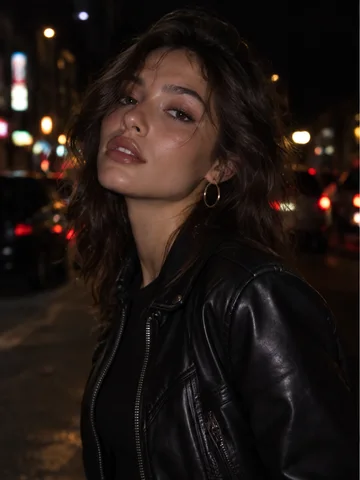
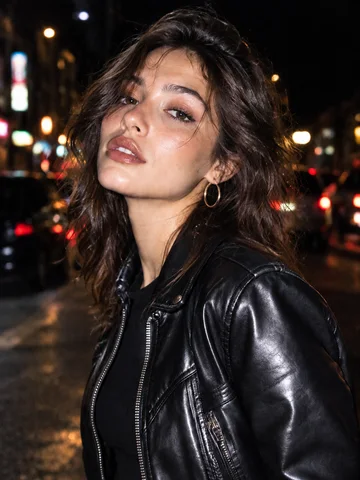
Check these details after a Night Flash edit:
- The face keeps the person’s expression and features under the brighter light.
- Small details such as earrings, zippers and buttons are still there and in the same place.
- The background keeps its setting, even when lights and reflections become stronger.
- Skin and clothing texture still look like the original rather than smoothed over.
How New Hairstyle works
New Hairstyle asks you to choose a cut, then a photo. The template screen lists hairstyles such as Textured Bob and Pixie Cut, and asks you to choose one photo to preview the template before you generate a result.
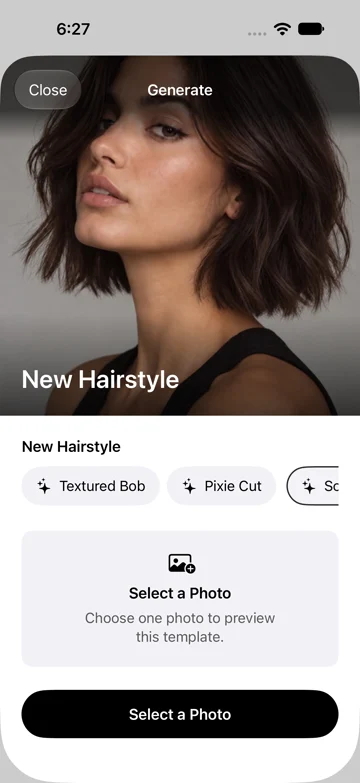
Choose the photo with the haircut in mind:
- Show the whole hairline. Hats, hoods and hands covering the hair leave the template less to work with.
- Keep the face clear. A close, well-lit face makes it easier to judge whether the person still looks like themselves.
- Use one person. A single portrait gives you one face and one haircut to check.
After a New Hairstyle edit, check that the face, ears and expression still match the original, and that the new hair meets the forehead and neck naturally.
Choose by the photo you have
Match the template to the photo in your camera roll. The table covers the situations that come up most often.
| Your photo and goal | Template to start with | Why |
|---|---|---|
| Night portrait, and you want more light and mood | Night Flash | The template changes the light, and the setting already fits |
| Daylight portrait, and you are curious about a shorter cut | New Hairstyle | The hair is the one thing you want to change |
| Portrait with a hat or hood | Choose another photo first | The hair is hidden, so a hairstyle has little to build on |
| Group photo | A single-person photo first | Every extra face is another detail to check |
| Photo that only needs brighter color | Local editing tools | A tone change does not need an AI template |
For a full checklist on picking the starting photo, use how to choose a photo for AI editing.
Check the result before you save or share
Compare every result with your original, whichever template you choose. List the details that should stay, such as the face, expression, jewelry and background, and look for each one in the result.
AI results vary by template and source photo, and Nomicam’s support guidance notes that generation can change details that were not intended. If a detail changes that matters to you, try the other template or a clearer photo, and keep the original either way.
Selecting a photo does not use an attempt, while an attempt may be used once generation is accepted for processing. AI templates send the selected photo to third-party AI service providers with your permission, as the Nomicam Privacy Policy explains, so only use photos you have the right to edit.
Frequently asked questions
Which Nomicam template should I try first?
Try the template that changes the one thing you want to change. Choose Night Flash for light and mood, and New Hairstyle for a different haircut.
Can I compare Night Flash and New Hairstyle on the same photo?
Yes. Run each template from the same original photo and compare the results side by side. Starting from the original each time keeps the comparison fair.
Will New Hairstyle change my face?
New Hairstyle is meant to change the hair, but AI generation can change details that were not intended. Compare the face, ears and expression with the original before you save or share the result.
Does Night Flash work on daytime photos?
Night Flash changes the light on the subject, and Nomicam’s release example starts from a night portrait. Try it on a daytime photo and compare the result with the original, since results vary by source image.
Check availability for iPhone
Nomicam is coming soon on iPhone. Visit the product page for current availability and an overview of its editing options.
Keep reading