
Nomicam / Guides
How to Choose a Photo for AI Editing
Published by Gestures Studio, the studio behind Nomicam.

Choose a photo where the main subject is easy to see, the light shows its detail, the file is sharp and close to the original, and the framing suits the look you want. Nomicam’s support guidance points the same way: use a clear, well-lit image, and avoid very blurry, heavily filtered, extremely dark or low-quality images.
An AI template can add a look, but your photo supplies the person, object or place. The more clearly it shows what you want to keep, the easier it is to check whether the result kept it.
This guide covers the checks to run on iPhone before you start an edit. If you have not made an AI edit before, begin with how to edit photos with AI on iPhone.
Make the main subject easy to see
Pick the photo where the thing you care about is large, unobstructed and in focus. Some Nomicam templates work best with a clearly visible face, outfit, product or background, so match the photo to what the template will change.
| If the template focuses on | Choose a photo where | Skip a photo where |
|---|---|---|
| A face | The face is large in the frame, with the eyes and expression visible | The face is small, turned away or covered by sunglasses, a hat or a hand |
| An outfit | The full outfit is in frame and nothing hides it | The clothes are cut off at the edges or hidden by a bag or table |
| A product | The whole product is visible, with clean edges | Reflections or other objects cover its shape |
| A background or scene | The subject stands clearly apart from what is behind it | The subject blends into a busy background |
HeadshotPro’s input guidance, written for a different kind of AI tool, makes the same point about portraits: small faces give the AI too little detail, and sunglasses, hats and face coverings hurt results.
Use a photo of one person for a first attempt. Every extra face is another detail that can change, so save group photos until you know how a template behaves.
Check the light on the subject
Look at the light on the subject first, and judge the rest of the scene second. A night photo can work when the subject is lit, and a noon photo can fail when the face sits in deep shadow.
- Even light shows the most detail. A window or open shade is a good place to look for it.
- Backlight can turn a face into a dark shape. Choose another photo if you cannot make out the expression.
- Harsh shadows across the eyes or mouth hide the details you will want to check later.
- Extremely dark photos leave little to work with, even when the scene looks atmospheric on screen.
A light exposure correction is different from a heavy filter, but it cannot recover detail the camera never captured.
Use the best version of the file
Use the original from your camera roll whenever you can. A photo can lose detail each time it is screenshotted, messaged or reposted.
| Where the photo came from | What to know | What to do |
|---|---|---|
| Camera roll original | It holds the detail your camera captured | Start here |
| iCloud Photos with Optimize iPhone Storage | Apple says full-resolution versions stay in iCloud, and the iPhone can keep space-saving copies | Open the photo and let it finish loading first |
| WhatsApp offers Standard and HD quality, and a sent photo cannot be improved afterward | Ask for the original or an HD resend | |
| Screenshot | It captures the screen, at screen resolution | Find the original |
| Downloaded from social media | It is usually a smaller copy made for the web | Find the original |
| Already heavily filtered | The filter has already changed color and skin detail | Use the unfiltered version |
To judge a file, zoom in on the detail that matters most. If the face, product edge or pattern already looks soft or blocky at full size, find a better copy.
Frame the photo for the result you want
Decide where the image will end up, then choose a photo that fits that use. A tight crop removes context, and a wide shot makes the subject small, so aim for the framing that keeps both the subject and the surroundings the look needs.
Include everything the template will change. A look built around clothing needs the clothing in frame. If the final image will be a square profile crop, check that the face and the space around it still work in a square.
See how one source photo reads
Practice on a real example. The image on the left is a source photo from Nomicam’s release imagery, with four notes on what to look at. The image on the right is its Night Flash result.
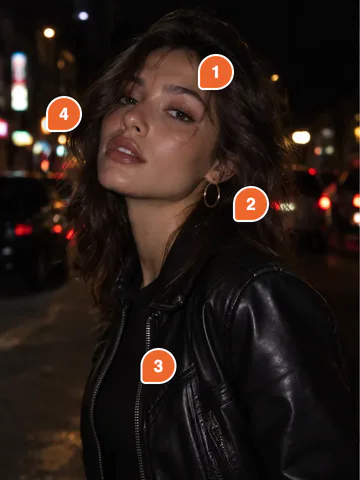
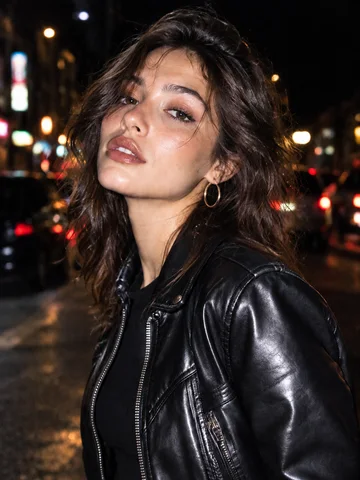
| Note | What to look at | Why it helps |
|---|---|---|
| 1 | The face is close, lit and shows a clear expression | The main thing to keep is easy to see |
| 2 | The hoop earring is a small, distinct detail | It gives you something specific to check afterward |
| 3 | The zipper and leather have hard edges and texture | Changes to them are easy to notice |
| 4 | The street lights are dark and blurred behind her | The night setting stays clear without competing with the subject |
In the result, the pose, the earring and the zipper carry over, the light on the face and jacket is brighter, and the road shows stronger reflections. Make the same comparison on your own photo: list what should stay, then look for each item.
Sort your options before you start
If you have several candidates, put each one in a group and start from the top.
| Group | Photo | Why |
|---|---|---|
| Start here | One clear subject, soft light, sharp original | The template has a clear subject, and you get an easy comparison |
| Start here | Close night portrait with light on the face | The setting is dark, and the subject is still easy to read |
| Try with care | Small group in good light | There are more faces to check afterward |
| Try with care | Wide shot with a small subject | The details you care about take up few pixels |
| Try with care | Backlit portrait with a visible face | Part of the face may be hard to read |
| Choose another | Blurry or extremely dark photo | The subject is hard to make out |
| Choose another | Screenshot of a reposted photo | The file has already lost detail |
| Choose another | A photo of someone who has not agreed to the edit | You need the right to use it |
These groups are practical guidance for sorting photos. Results vary by template and source image, so treat them as a starting order.
Run this check before you start
Selecting a photo in Nomicam does not use an attempt, while an attempt may be used once generation is accepted for processing, even if it later fails. That makes this short check worth doing first:
- Can I see the main subject clearly at full size?
- Is the light on the subject good enough to show its detail?
- Is this the original file, or the best copy I can get?
- Does the framing include everything the template will change?
- Do I know which details should stay recognizable?
- Do I have permission to use this photo for this purpose?
The last question matters for more than quality. Nomicam’s Terms make you responsible for having the rights and permissions to upload a photo, including permissions from people in it where required.
AI templates and local tools also handle your photo differently. With your permission, AI processing sends the selected photo to third-party AI service providers, while local filters and adjustments run on your device. The Nomicam Privacy Policy explains this in full. If you only want a small change to tone or color, the local tools may be all you need.
When you have your photo, the first-edit workflow preview shows what comes next.
Frequently asked questions
Can I use a screenshot for an AI photo edit?
You can try, but the original is the better starting point. A screenshot records the photo at screen resolution and can include parts of the interface. Crop out anything that is not the photo if a screenshot is all you have.
Can I use a group photo?
Yes, if the template suits it, but use a single-person photo for a first attempt. Every person in the frame adds a face and expression to compare afterward.
Why did a good photo still produce a poor result?
AI results vary by template and source image, and generation can change details you did not intend. Try a template that better matches the photo, or a clearer photo of the same subject. Keep your original either way.
Check availability for iPhone
Nomicam is coming soon on iPhone. Visit the product page for current availability and an overview of its editing options.
Keep reading