
Nomicam / Guides
Your First Photo Edit in Nomicam: A Workflow Preview
Published by Gestures Studio, the studio behind Nomicam.

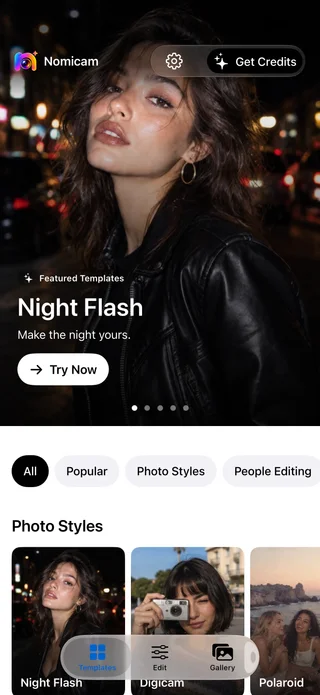
Nomicam is an AI photo editor for iPhone. Its template workflow starts with a look you want to try. Choose a template, add a photo, and refine the details using the available options. This preview explains what to prepare for that first edit and how to decide whether the result works for your photo.
Pick one look for one photo
Start with a single photo and a clear goal. For example, you might want a more stylized version of a portrait while keeping the person’s expression recognizable. That gives you a reason to choose a template and a detail to check afterward.
Look at what the template is meant to change. A look that suits a close-up portrait may make less sense for a group photo where everyone should remain recognizable. Choose the direction based on the photo you actually have.
Use a source photo you can compare
For a first portrait edit, pick a photo where the subject and the details you care about are easy to see. If an accessory, expression, or part of the background matters, make sure you can recognize it in the original. Keep that original available for comparison. For a fuller check of subject, light, file and framing, read how to choose a photo for AI editing.
Decide on one priority before editing. If the expression matters most, check it first when you see the result. If the photo is for a square profile crop, look at whether the face and surrounding space still work in that frame.
Review the result at two sizes
Look at the whole image first. Does the edit move the photo toward the look you chose? Then zoom in on the details that matter. A portrait can look good at thumbnail size while a small change becomes obvious when you look closer.
| Review | What to look for |
|---|---|
| Overall look | The mood, light, and color suit the use you had in mind. |
| Subject | The person’s expression and other details you care about still read as intended. |
| Edges and objects | Clothing, accessories, and the background look right for the photo. |
| Final framing | The main subject still fits where you plan to use the image. |


Compare against the source photo. If the result changes a detail you wanted to keep, reconsider the template or start from a photo that shows that detail more clearly. For a smaller change to tone or color, Nomicam’s product overview also describes a separate set of local filters and editing tools.
Check availability for iPhone
Visit the product page for current availability and an overview of Nomicam’s editing options.
Keep reading